tech

Effective examples in the digital age
Picking apart and reworking my lessons from last year, I noticed that I almost exclusively model worked examples by handwriting “live” rather than pre-typing. I don’t recall making a conscious decision to do this, but following a discussion with my husband this weekend about print vs digital media, I thought I’d think more critically whether either style has any considerable advantage.

There are some interesting studies about reading information via print or digital media; this paper from theย Research in Learning Technologyย journal looks specifically at educational materials and this article fromย Phys.orgย summarises some of the preferences people have for different media – generally, we prefer printed media for longer, more involved reads and digital media for shorter reads. I also foundย this studyย examining handwriting vs typing inputs for students when solving equations; the authors conclude that the only real difference in this scenario is the speed at which students completed the task, with typesetting algebra taking twice as long as handwriting solutions. However, I’ve not been able to find anything on the modelling of worked examples in Maths, so this blog post is written with the caveat that this is all personal theorising and is not research-based

Advantages of written examples

1) Less time taken to prepare lesson materials

Time-gains while planning are significantly in favour of handwritten examples, particularly as questions become more complex towards the top end of GCSE and into A Level, and when complex algebra is involved. However, as handwriting recognition tools such as Microsoft Office’s Ink Equation Tool are becoming increasingly effective, it might be interesting to see whether this remains true in five or ten years’ time.

2) Teacher’s thought processes are more visible to students

One advantage of working “live” is that the teacher can model thought processes more easily, verbalising each step in the working. This process is also instantly adaptable to the class – the teacher can speed through stages that students are confident with, or elaborate in more detail if a step requires further explanation. 

3) Teacher can model layout and presentation of mathematical working

Again of particular importance for top-end GCSE and A Level, as problems and solutions become more complex, students increasingly need guidance with how to present their work in a coherent manner. Watching a teacher model this directly may be easier to translate to their own work than looking at a typed example.

4) Teacher can include student input more easily

When I complete worked examples with a class, I tend to ask for input from students at each step and see what they can work out logically or infer from prior knowledge. The rigidity of a pre-typed example makes it more difficult to include student responses, as many of them may go slightly off-script from the pre-planned work.


Advantages of typed examples

1) More critical selection of illustrative examples

If I’m going to typeset solutions, I make damn certain the example I’m using illustrates a key point or highlights a common misconception. The need to work efficiently means I then select an example which serves many purposes and has decent mathematical weight. It also means that the numbers work properly – while I usually check all the examples I prepare in my lesson materials, occasionally the odd blooper slips in – the star culprit is quadratics that don’t have real roots. While this can form the basis of an interesting discussion, it can also wrong-foot a class and damage confidence in the teacher.

2) Final solution can be presented with greater clarity/use of colour

While there are losses in the step-by-step process, the end product is often more coherent when digitised. There are times when I’ve stepped back from a worked example and actually looked at what’s on the board – and because I’ve documented my thinking process or expanded on certain points, the solution can end up looking mathematically messy or sometimes confusing to students. I also have a tendency to use arrows and random bits of annotation which get very scruffy when handwritten, and my handwriting itself has deteriorated significantly over the last ten years as I get less and less daily practise.

3) Diagrams and graphs can be incorporated more easily

Unless I am specifically modelling graph-plotting with Year 7, I no longer draw graphs by hand. It’s tedious and time-consuming, and incredibly difficult to do when working right up against a whiteboard! Using a tool likeย Desmosย is now pretty commonplace, but if I’m doing this I will often prepare graphs in advance rather than plot “live”, as I can make sure that the graph is scaled appropriately. Diagrams or pictorial representations always look better when done digitally – for example, your standard “counters in a bag” when working with tree diagrams.ย 


This year I’m probably going to carry on handwriting most of my examples – I enjoy the process of working through problems collaboratively with a class, and I think typeset examples lose some of this. However, I am going to reconsider selecting some gold-standard examples for each topic to typeset; at GCSE, our students have small exercise books that are used to take important notes and write down illustrative examples, and these would seem the ideal candidates for a bit of deeper thought and clearer presentation.

.

Effective examples in the digital age Read More ยป

Top 5 for public domain images

While the Internet is possibly the best thing that’s happened to teaching and education in the last thirty years (think TES resources, Twitter, independent sites, quick communication channels), it also comes with a minefield of copyright issues. A couple of weeks before I left my last job, an email went round to all staff reminding them of copyright issues with downloading and using images from the Internet – and I used to be as guilty of this as the next person. When planning a lesson, it’s very easy to just Google and pull in an image from anywhere to jazz up a PowerPoint – accessing images from all over the world means that you can easily illustrate a point about real-life applications of the mathematics pupils are studying. However, with the prevalence of online resource sharing, it’s more important than ever to make sure that images used and redistributed are actually done so legally.
I don’t profess to be an expert on copyright – when reading and researching around the subject while picking content and images for blogs, it’s clear that even experts are struggling to keep pace with the changes in technology. One case in point isย Pinterest, popular not only with educators but with hobbyists globally. By traditional copyright law, Pinterest users should either own or have permission to distribute the content they are posting, creating a real dilemma with Pinterest’s stated aim of being a “visual bookmarking tool”. There’s an interesting article from theย Wall Street Journal hereย if you’re interested in finding out more about the legal issues.

โ€‹Fortunately, there are plenty of quality public-domain image sites where you can source content available for any use, often including full commercial rights – so without further ado, here’s my top 5.


1. Wikimedia Creative Commons

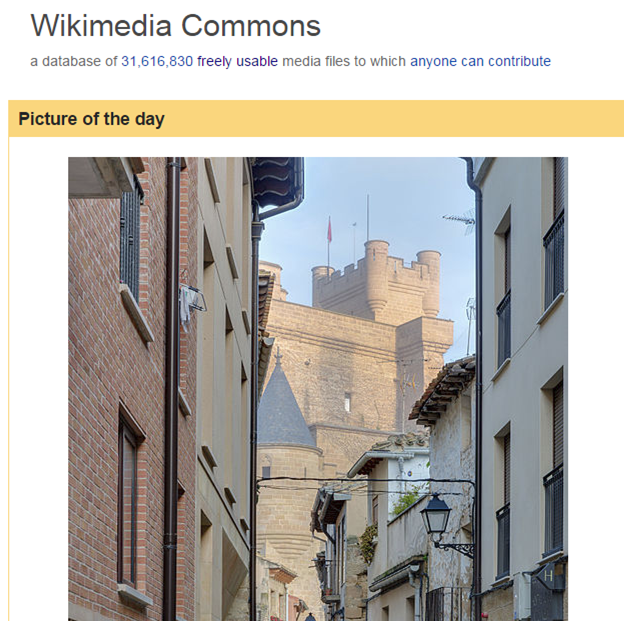
Theย Wikimedia Creative Commonsย library is a huge library of user-created content – many of the pictures and resources have been uploaded by amateur photographers or creators, and you can easily search pictures for most topics.

I source 90% of my blog header images from here. Pictures often require attribution, but most creators are happy for their work to be used in any electronic or print format. It’s worth checking out – there are some very high quality images on there.


2. Pixabay

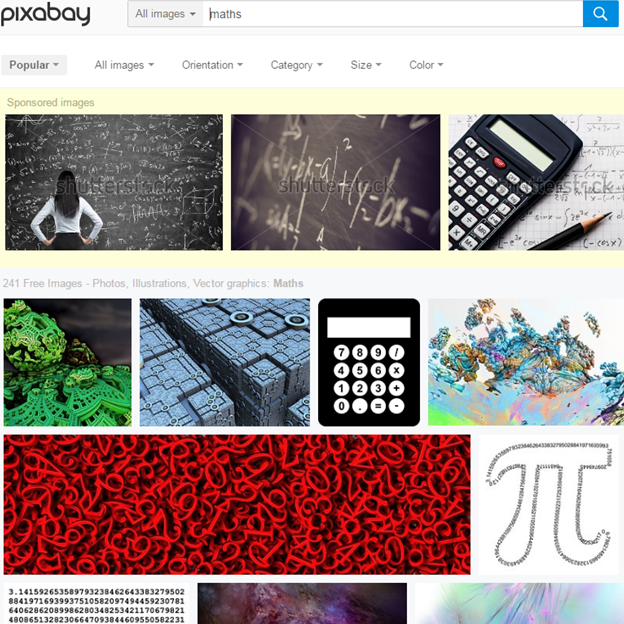
Pixabayย operates in a similar vein to the Creative Commons library, and contains thousands of copyright-free images. The pictures on here are incredibly good quality, and while finding very subject-specific images is difficult, they have a broad range of general mathematics images, along with plenty of real-world pictures to illustrate teaching points.

One word of warning – there are some images hosted from Shutterstock (clearly watermarked) which are not public domain and require a license.


3. Clker

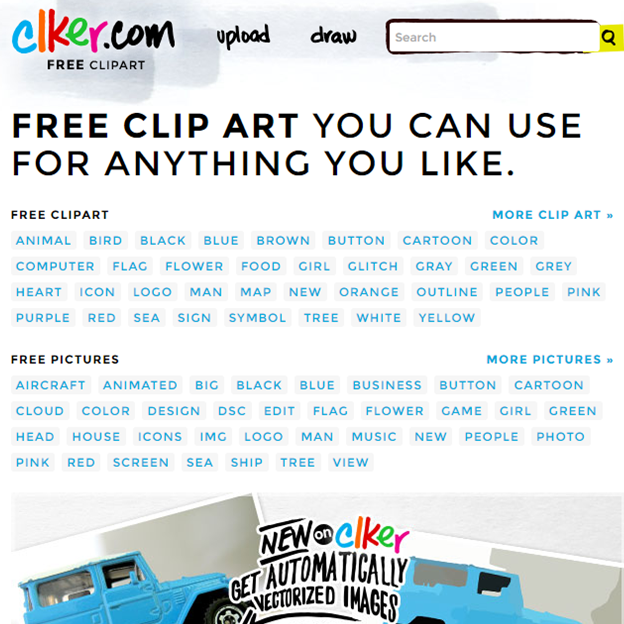
Clker’s online clipart galleryย is created by users and uploaded under the CC 1.0 Universal license, which essentially waives any copyright on the content.

โ€‹They have a wide selection of images, including plenty for educators. The quality can be a little hit-and-miss, but there are some really nice pieces of clipart on there if you dig deep.


4. Openclipart

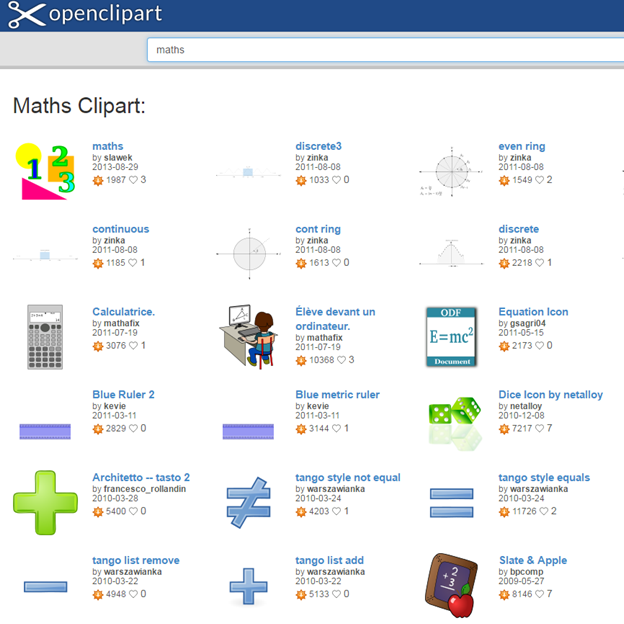
Openclipartย operates in a similar vein to Clker, and provides user-created clipart images under an unlimited license.ย 

Many creators on Openclipart produce series of clips in the same style, which can be useful if you’re looking for a set of matching images to add to a resource or presentation.


5. DIY

This may seem facetious, but one of the best sources of realistic mathematical images is getting out there and taking photographs yourself. Most of us now carry around a very high quality digital camera on our smartphones, and there are plenty of opportunities for capturing some excellent real-world mathematics.

โ€‹I attempted aย Maths in Picturesย series on my honeymoon last year as part of theย summer blog challenge, and Tom Bennison recently postedย Posing Mathematical Questionsย featuring four excellent mathematical images. Look out for floor tiling patterns and interesting structures, and if you’re after a specific image, it may often be quicker to create it yourself than try to hunt down what you’re after online.


Honourable mention: Canva

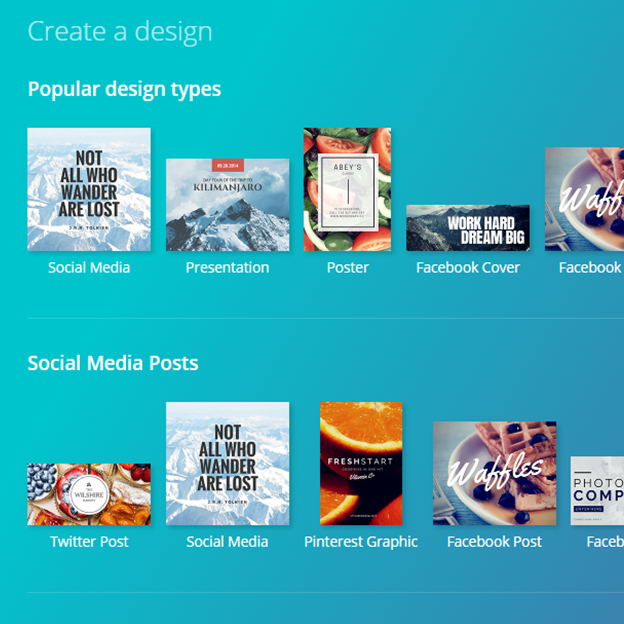
Whileย Canvaย is not exactly an image library, I thought it’s worth including on this list because it is quite simply the best free source for creating high-quality composite images for things like blog headers or social media posts. I discovered Canva viaย Mark Anderson’s post on Staffrmย while doing theย 29 days of writing challengeย in February.

It’s very easy to learn to use, with options to use their free images or upload your own. I particularly like the automatic sizing options for various social media formats, such as Facebook covers or Twitter cards. I created the header image for this post in about three minutes!

Top 5 for public domain images Read More ยป

Tripping the Life-Cam-tastic

As I mentioned in my blog about #mathsconf5, I’ve recently acquired aย Microsoft LifeCamย for my classroom and I’ve been playing with it rather a lot this past week. I need to take some photos of the setup in my classroom, but it’s basically a small portable plug-and-play webcam with accompanying software to take pictures, videos and audio. So far, I’ve only used it to take pictures during lessons, but even that has been incredibly powerful, and my pupils have shared some brilliant work and ideas.

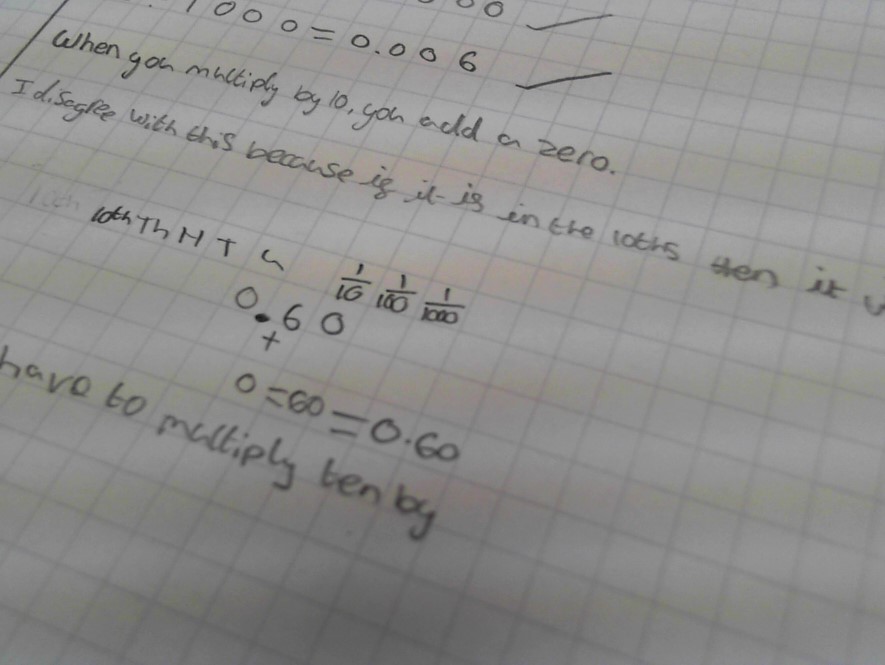
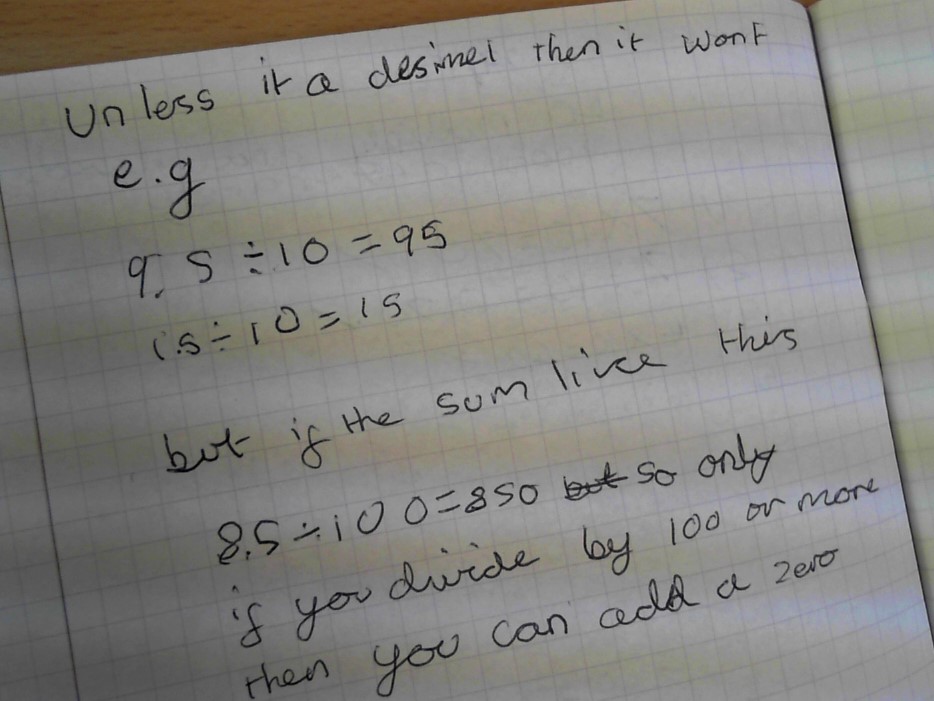
Multiplying and dividing by powers of 10 – Year 7

Amy says “when you multiply by 10, you add a zero”. Is she correct? Explain.

At the end of a lesson about place value and multiplying/dividing by tens and hundreds with Year 7, I asked them to write a short response to the above question. You can get the resource here.

I usually get pupils to do this activity when we work on place value, as it exposes a lot of misconceptions. Being able to take pictures of pupils’ responses and immediately put them on the board meant that the discussion was much richer this time around.

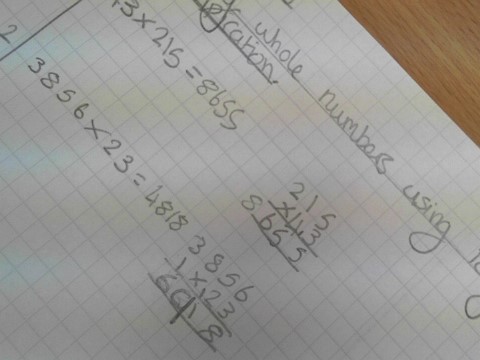
Written multiplication methods – Year 7

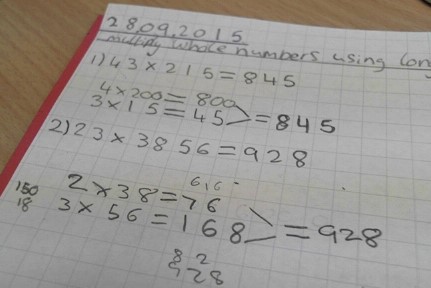
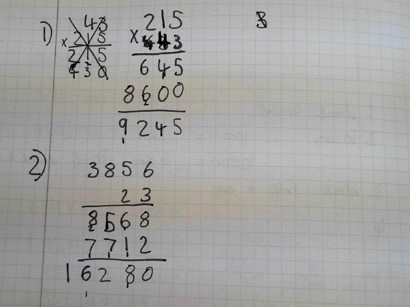
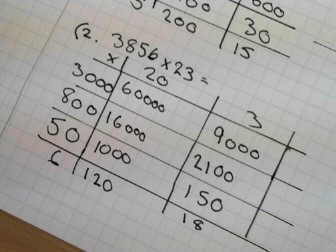
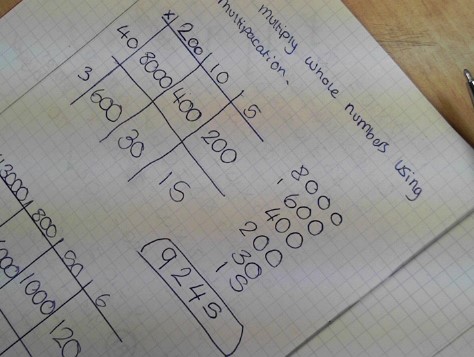
These ones come from the same class – we did some work this week on multiplication methods. I asked them to tackle two multiplication problems using the methods they already knew (you can read about my approaches toย multiplication methods here), then asked for pictures of their work, trying to capture all the different methods.

I also pulled an example of long multiplication and the grid method for the same question onto a PowerPoint slide pretty much instantly, then we annotated the similarities and differences between the methods, trying to “spot” one in the other.

Improper fractions and mixed numbers – Year 8

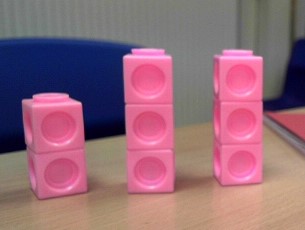
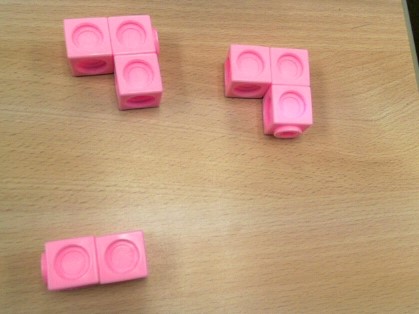
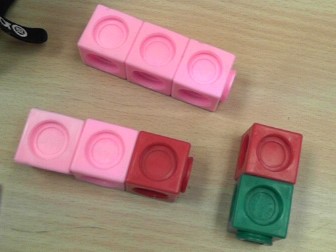
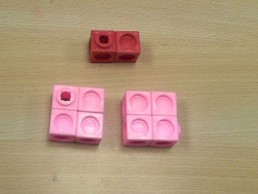
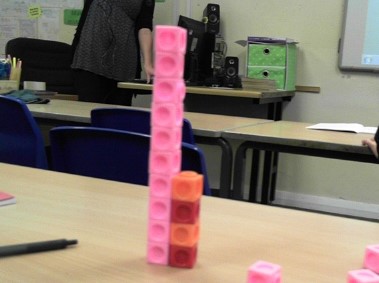
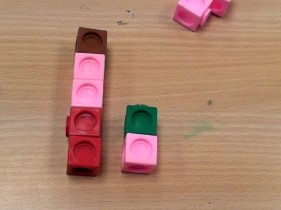
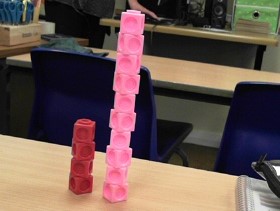
Reviewingย improper fractions and mixed numbers using multi-link cubesย with Year 8 seemed to cry out for using my LifeCam – I asked them to build models of 8/3 and 10/4 using the cubes, then we used the photographs to discuss the similarities and differences between each pupil’s model. I then used pictures of their models to illustrate a key point in today’s lesson about adding mixed numbers.

Subtraction using regrouping – Year 8

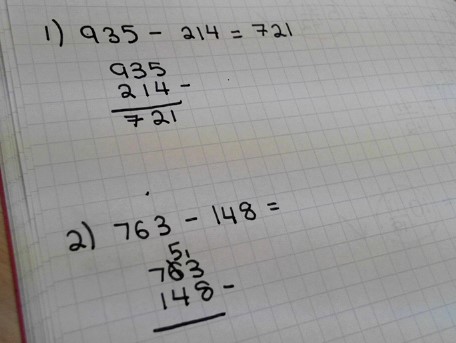
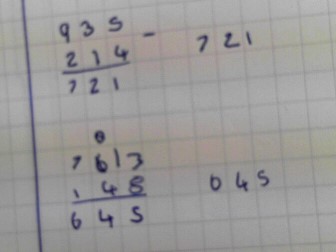
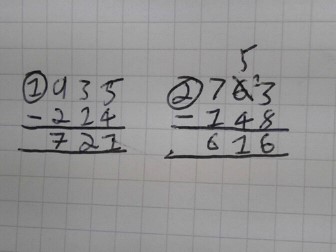
Finally, I decided to give subtraction of mixed numbers using regrouping a go, so I got the pupils to tackle some whole-number subtractions first, so we could discuss the strategies they’d used.

Another powerful feature that comes out of this is that pupils seem much more willing to check and correct their work when they see a peer’s solution than mine on the board. The pupil with the incorrect answer here quickly spotted what he’d done wrong and explained how to correct it to the class.


A couple of people asked me at #mathsconf if these were expensive; my response is I have no idea what we paid for the ones we have in school – it may be that they can be purchased more cheaply in bulk. Theย one I linked at the startย is pretty reasonable (RRP about ยฃ45), particularly as the picture quality goes up to HD, the camera functions fairly well in very low light conditions, focuses quickly and is pretty “shake” resistant when taking pictures. I can’t comment on the audio or video specs currently, as I’ve not played with those yet, but watch this space!

Tripping the Life-Cam-tastic Read More ยป

Useful tools for website developers

I’ve had my website in some form for about three years now; I created my original site using Weebly as my knowledge of HTML was (and still is) fairly limited, and I was more interested in quick functionality than building everything from scratch.

As I’ve gone along, I’ve found loads of places with useful information or gizmos for amateur website designers and developers, so thought I’d share a few in this post. These are just the ones I use and find helpful – there are plenty of others out there! I’m going to keep this list open and continue to add to it as I find (or remember) more useful stuff.

  • โ€‹Bitly ~ Use to shorten long or messy URLs; particularly for sharing links on Twitter.
  • Social Media Design Blueprint (Hypebot) ~ Great chart/guide for image sizes on all social media.
  • Color Code Converter (RapidTables) ~ Converts colour formats; I frequently use the RGB to HEX converter.
  • Paletton ~ Free and easy colour scheme creator; just pick a base colour and scheme makeup.
  • Twuffer ~ Simple Twitter buffer, allows you to schedule Tweets – previously blogged about here).
  • Google Analytics ~ Very useful for tracking visits and collecting useful information for site development.
  • W3Schools ~ Good HTML tutorials and copyable examples!

I’ve also found a lot of answers to my many, many questions by simply Googling and then using trial and error. If you’re thinking of setting up a site this academic year, do it! I’ve had a lot of fun managing and working on mine, and still have lots planned.

Useful tools for website developers Read More ยป

Google Trends

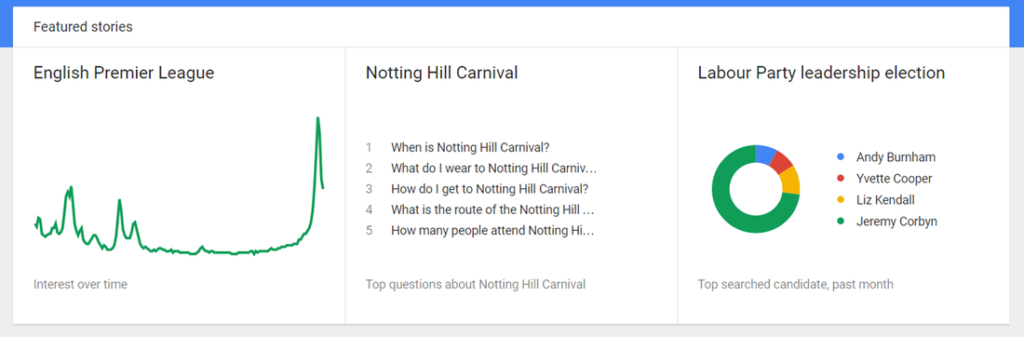
A quick post tonight to shareย Google Trends, an interesting little web app from Google that allows you to explore what people have been searching for online. I discovered this site a few years ago, and it’s great for getting some interesting real-life data and graphs for short discussions in the classroom.First of all, there’s a selection of featured stories on the front page – the app defaults to the US but you can select other countries instead. Each of these links to a fuller report which typically includes graphs exploring different elements – for example, the Notting Hill Carnival report shows a nice graph over time of interest in the carnival.

Image: Google Trends

You can pull up a report for any search term or topic; typically you get an interest over time graph, a regional interest map and related searches.

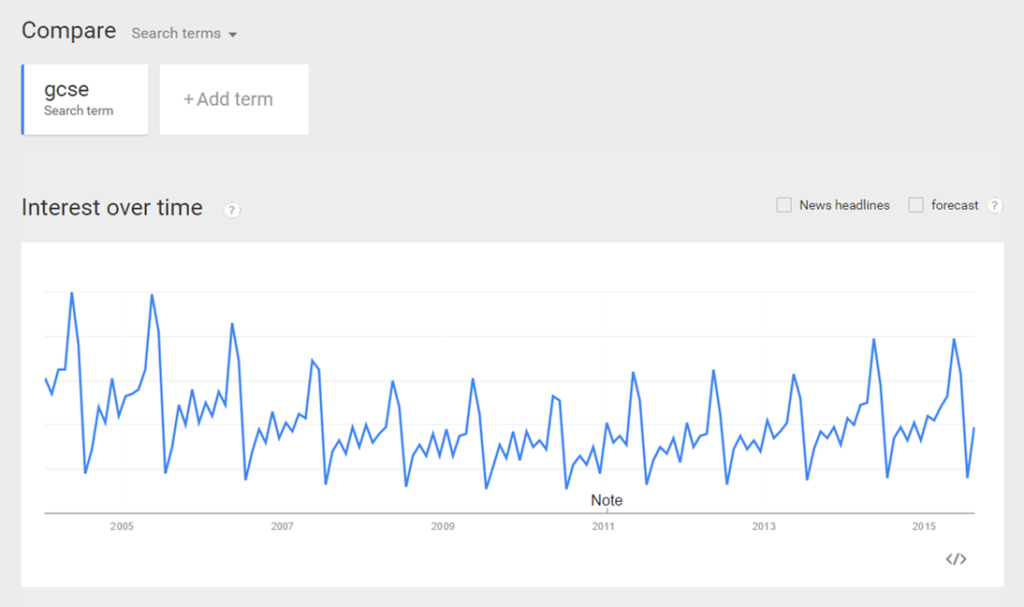
A nice little activity using this is to display a graph of a particular search term, but not tell pupils what that term is. They then need to work out (or try to guess) what the search term is – I’ll let you try and work out this one.

Image: Google Trends

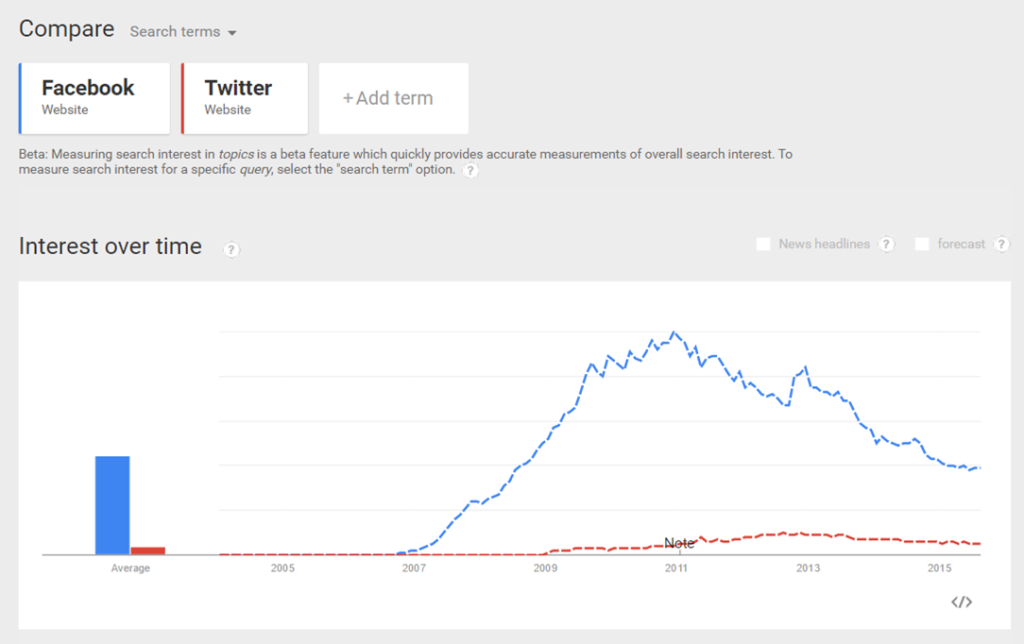
You can also create comparison reports and graphs, and reports go back to 2004. Here’s a comparison for searches for “Facebook” and “Twitter”.

Image: Google Trends

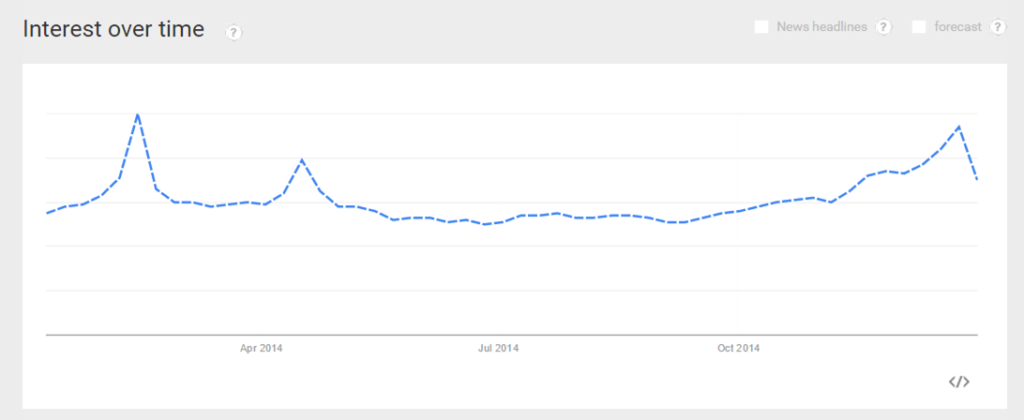
It’s also quite interesting just to have a play and see what patterns you can find. Here’s the interest over time graph for “gcse”:

Image: Google Trends

Google Trends Read More ยป

An IFTTT and Pocket update

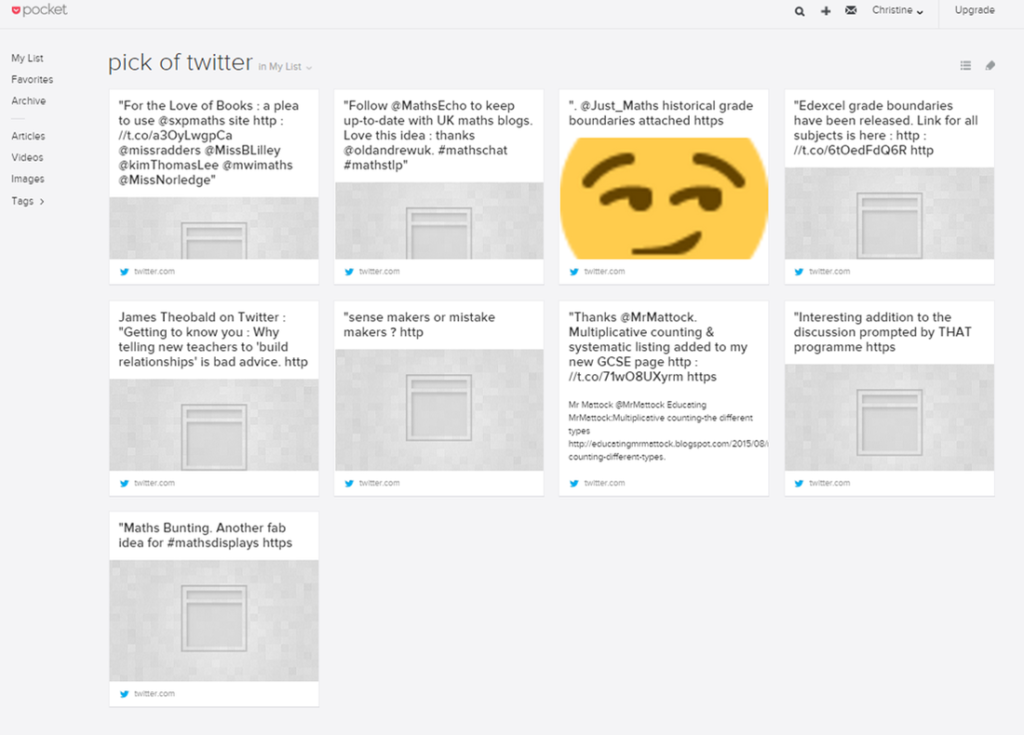
I blogged last week aboutย discovering IFTTTย and how I’d be using it to help with my Pick of Twitter every week – everything I favourited on Twitter last week automatically got saved to Pocket and tagged with “pick of twitter” so I could easily distinguish Twitter favourites from anything else I’d saved from other sites.

Once I’d written my blog post, I just went through and deleted all the links in Pocket to give me a clean slate for this week.

It was only a short list to sort out yesterday, as I spent five days of last week on yet another holiday. However, ย I don’t know how manageable it’ll be with a full week’s worth of stuff to sort out, particularly when #mathsTLP and #mathschat start up again!

An IFTTT and Pocket update Read More ยป

I’m going again… and Facebook

I’m afraid it’s another quick #summerblogchallenge post today as I’ve been pre-writing a load more meaningful posts for the next few days – I’m disappearing off to a festival this weekend, so will be employingย Twufferย for a bit more time-travelling blogging.

I spent a bit of time yesterday and today setting upย a Facebook pageย for the Storeroom, seeing as that’s whereย all the cool kidsย seem to be spending their time currently. I was a little wary about using Facebook for work initially, as I tend to use Twitter professionally and Facebook privately, but fiddling around with the privacy settings has put my mind at ease a little.

I’m not sure yet exactly what I’m going to use the page for – it might be duplicates of Twitter posts for now, but Jo (@mathsgem) has already mentioned finding new resources via Facebook in herย latest gems post, so I guess I’ll see how it goes!

I’m going again… and Facebook Read More ยป

If this, what next?

A couple of days ago, @mathedup mentioned using IFTTT (If This Then That) for automating post sharing between Twitter and Facebook. I’m not a big user of Facebook for teaching stuff (yet), but was intrigued by the title of the app, so decided to go and have a play, mostly in preparation for setting up my own Facebook page soon.

I quite like playing around with technology, and, as I only got a smartphone a couple of years ago and my tablet about six months ago, the world of apps is relatively new to me. So I’ve quite enjoyed messing with IFTTT this afternoon – depending on what’s ended up being useful, I’ll post some more in-depth tutorial-type things later.

Pocket and Twitter

One of the first things I did was to discover Pocket in the list of connectable apps. It’s a cute little way of storing articles, videos and pictures from social media or around the web to read later. There’s also a Chrome button so you can use it on your PC. I’ve created a Pocket account, and am going to try it out over the next couple of weeks to help me to organise and save interesting things I find while browsing.

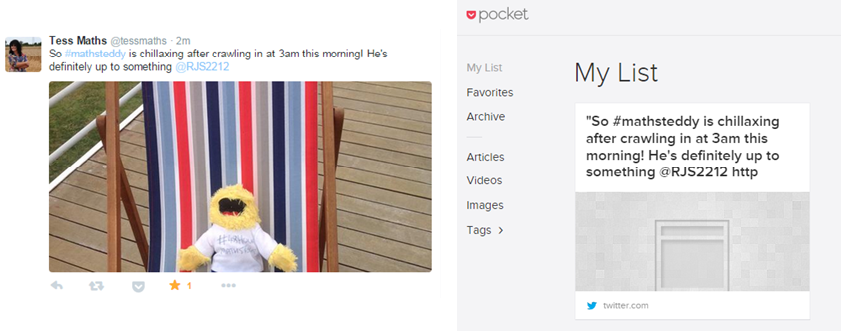
I then thought I’d try and connect up Pocket and Twitter. I tend to “save” things on Twitter by favouriting them, which worked really well when I’d just started, but my list of favourites is now far too long to find anything useful. I created a recipe which automatically saves any tweet I favourite to my Pocket account. To make it easier to do my Pick of Twitter next Sunday, I also got Pocket to tag each tweet with “Pick of Twitter”. 

That’s a screenshot of the quick test I ran with the tweet that happened to be at the top of my news feed at the time; there’s a slight time delay in saving to Pocket (approximately 2/3 minutes), but functions fine if you don’t expect to be able to access things you’ve favouritedย instantaneously.

Cleaning up

I then decided to investigate a bit further. One of the issues I ran into quite quickly was the fact that there are nearly 40 channels added by default, most of which aren’t particularly useful for my intended purpose – things like Entertainment Weekly and a load of phone utilities such as auto-sending text messages. Unfortunately, there isn’t a multi-delete option, so I had to go through one by one and remove them. 

There are some pretty useful utilities in there though, such as a trigger to turn off Wi-Fi and enable power saving mode once your phone gets below a certain battery level, which inevitably means I’ll now be setting up a personal account too!

Windows 10 and Evernote

I’ve never really got Evernote – I know a lot of people use it for collecting and keeping resources, but when I downloaded it a couple of years ago, I really didn’t get on with the interface and found it horrible to use. However, my ICT-play day also led me to finally install Windows 10, and consequently I ended up checking out some of the app features on there. 

There’s an app version of Evernote (called Evernote Touch) which automatically installed itself. Before removing it, I opened it up for a look and decided that I might be able to get on with this version after all – it looks much slicker and it’s quicker to figure out what I want to do. I’m going to give this a trial along with Pocket over the next few weeks and see how I get on.

As a side note, Windows 10 is actually…OK. The Start button is still here, and it’s much easier to navigate than Windows 8. The app versions of things like Facebook and Twitter look really nice too – it’s just a shame my computer’s not touch-screen!

If this, what next? Read More ยป

How to bend space and time – Twuffer

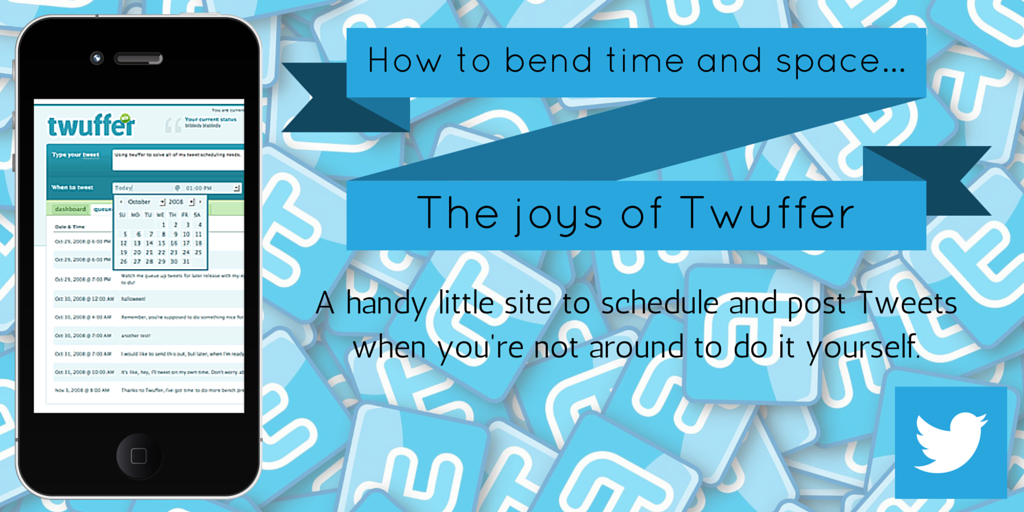
You know those people that seem to postย all the timeย on Twitter? I’ve discovered their secret – for me, it was a bit of a necessity if I’m going to manage theย #summerblogchallenge, as I got married yesterday and currently have a houseful of people continuing the celebrations until at least Saturday**.

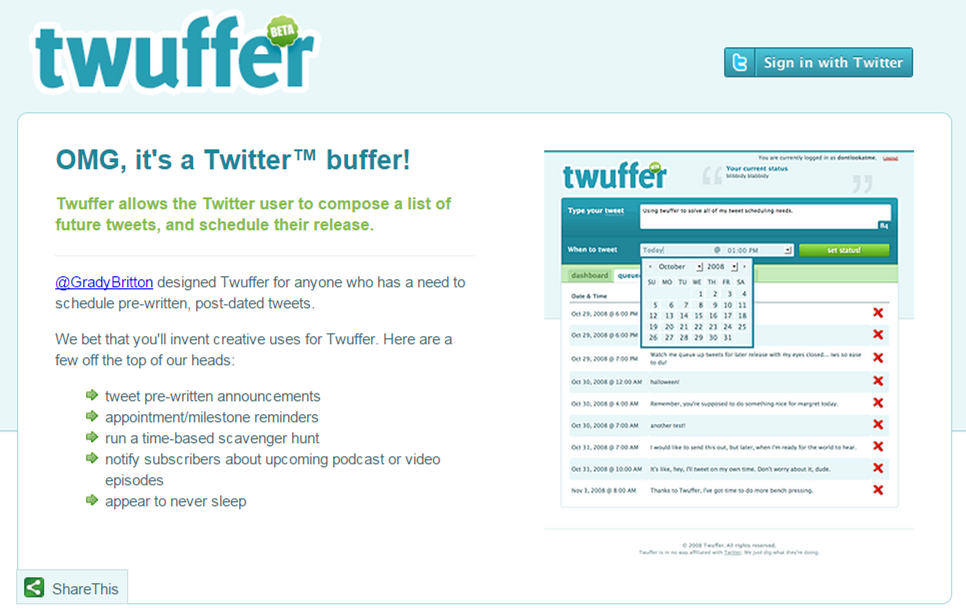
It’s a handy little site calledย Twufferย – you sign up for free with your Twitter account, then simply schedule a Tweet in advance. If you want to schedule a link to a blog post that’s not live yet (as I’ve been doing), you might need a little jiggery-pokery with the url of your post, but it’s fairly simple to work out.

If you’re a Twitter-a-holic, it’s worth having a play with. I’m determined not to get too spammy with it though – there’s nothing worse than seeing the same Tweet five times in a week!** I actually wrote this post about a week before the wedding – it may be that everyone’s had enough and gone home. I’ll let you know in a week… or tomorrow… or something. This time travel shiz is confusing.

How to bend space and time – Twuffer Read More ยป